 5ee5e8817b
VSCode extensions can use authentication providers to enable authentication actions from the Accounts menu, and to allow for federated authentication. The Sourcegraph Search extension needs neither of those - it can meet all of its authentication needs with the existing actions in is side panel. On top of that, the authentication provider isn't implemented quite correctly, which leads to issues like #43608. This PR removes the authentication provider. It retains all of the expected behavior of the extension: the user can still authenticate against sourcegraph.com or private instances using an access token, and log out. ## Test plan ### First Build and run locally. ``` git switch peterguy/vscode-remove-auth-provider cd client/vscode pnpm run build ``` ### Then - Launch extension in VSCode: open the `Run and Debug` sidebar view in VS Code, then select `Launch VS Code Extension` from the dropdown menu. - Note that the Accounts icon does not display a "1" badge and "Sign in with SOURCEGRAPH_AUTH" is not present in the menu. - Click on `Have an account?` to open the login dialog. - Enter an access token and the URL of the Sourcegraph instance to which you would like to connect. - Click `Authenticate account`. - Check the Accounts icon and menu - should not be anything there that's a result of Sourcegraph Search. - In the Help and Feedback section, click your username to open the logout panel, then log out. - Note again, the lack of modifications to the Accounts icon and menu from the Sourcegraph Search extension. ## Changelog - Remove interaction between the Sourcegraph Search extension and the Accounts menu. |
||
|---|---|---|
| .. | ||
| images | ||
| scripts | ||
| src | ||
| tests | ||
| .bazelignore | ||
| .eslintignore | ||
| .gitignore | ||
| .stylelintrc.json | ||
| .vscodeignore | ||
| BUILD.bazel | ||
| CHANGELOG.md | ||
| code-intel-extensions.json | ||
| CONTRIBUTING.md | ||
| globals.d.ts | ||
| LICENSE | ||
| package.json | ||
| README.md | ||
| tsconfig.json | ||
Sourcegraph for Visual Studio Code


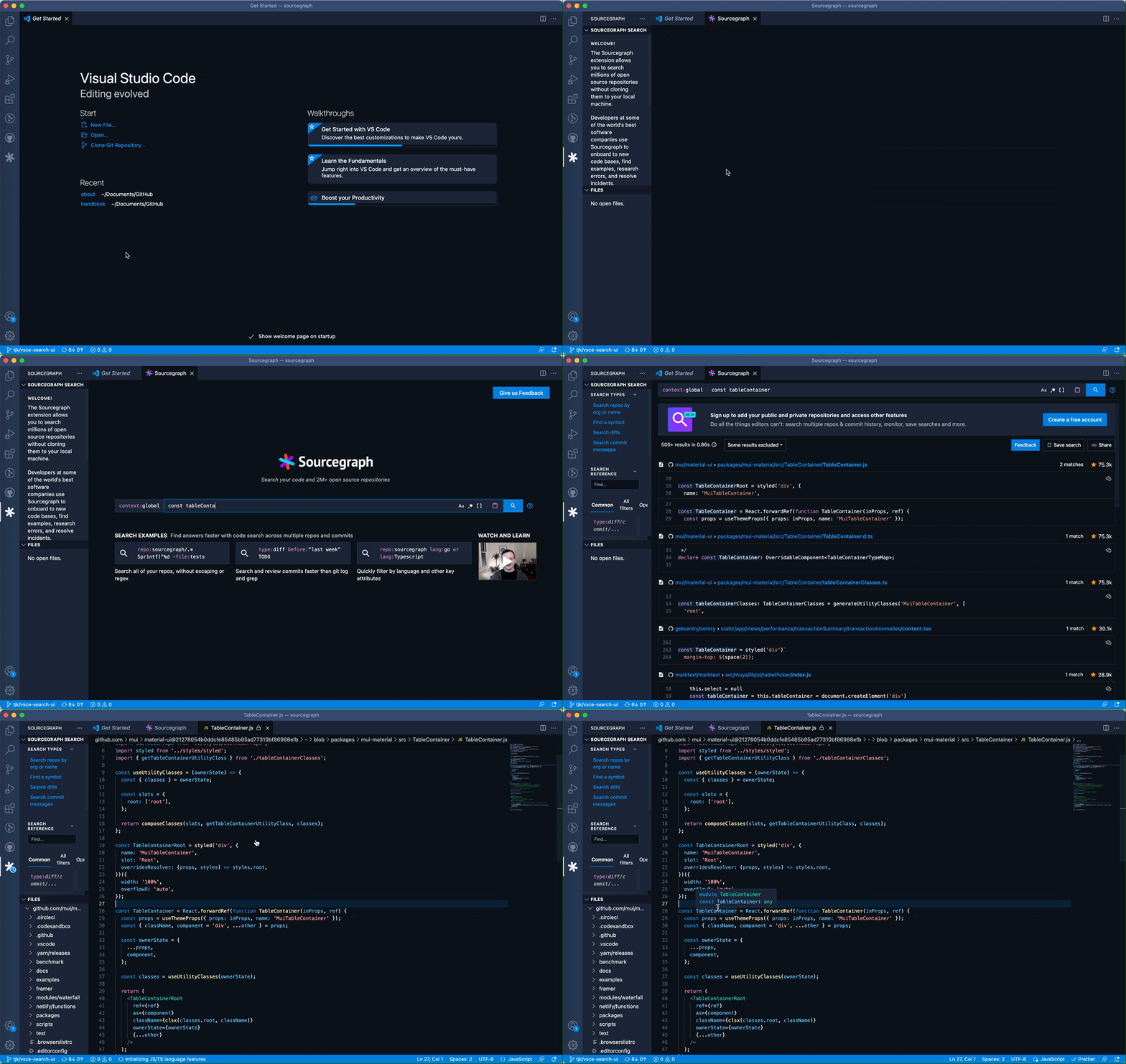
Sourcegraph’s code search allows you to find & fix things fast across all your code.
Sourcegraph for VS Code allows you to search millions of open source repositories right from your VS Code IDE—for free. You can learn from helpful code examples, search best practices, and re-use code from millions of repositories across the open source universe.
Sourcegraph’s Code Intelligence feature provides fast, cross-repository navigation with “Go to definition” and “Find references” features, allowing you to understand new code quickly and find answers in your code across codebases of any size.
You can read more about Sourcegraph on our website.
Not the extension you're looking for? Download the Cody extension for code AI assistance.
Installation
From the Visual Studio Marketplace:
- Install Sourcegraph from the Visual Studio Marketplace.
- Launch VS Code, and click on the Sourcegraph (Wildcard) icon in the VS Code Activity Bar to open the Sourcegraph extension. Alternatively, you can launch the extension by pressing Cmd+Shift+P or Ctrl+Shift+P and searching for “Sourcegraph: Open search tab.”
From within VS Code:
- Open the extensions tab on the left side of VS Code (Cmd+Shift+X or Ctrl+Shift+X).
- Search for
Sourcegraph->InstallandReload.
From Gitpod VS Code Workspaces:
- Open the
Extensions viewby clicking on the Extensions icon in the Activity Bar on the side of your Gitpod VS Code workspace - Search for Sourcegraph ->
InstallandReload.
Using the Sourcegraph extension
To get started and open the Sourcegraph extension, simply click the Sourcegraph (Wildcard) icon in the VS Code Activity Bar.
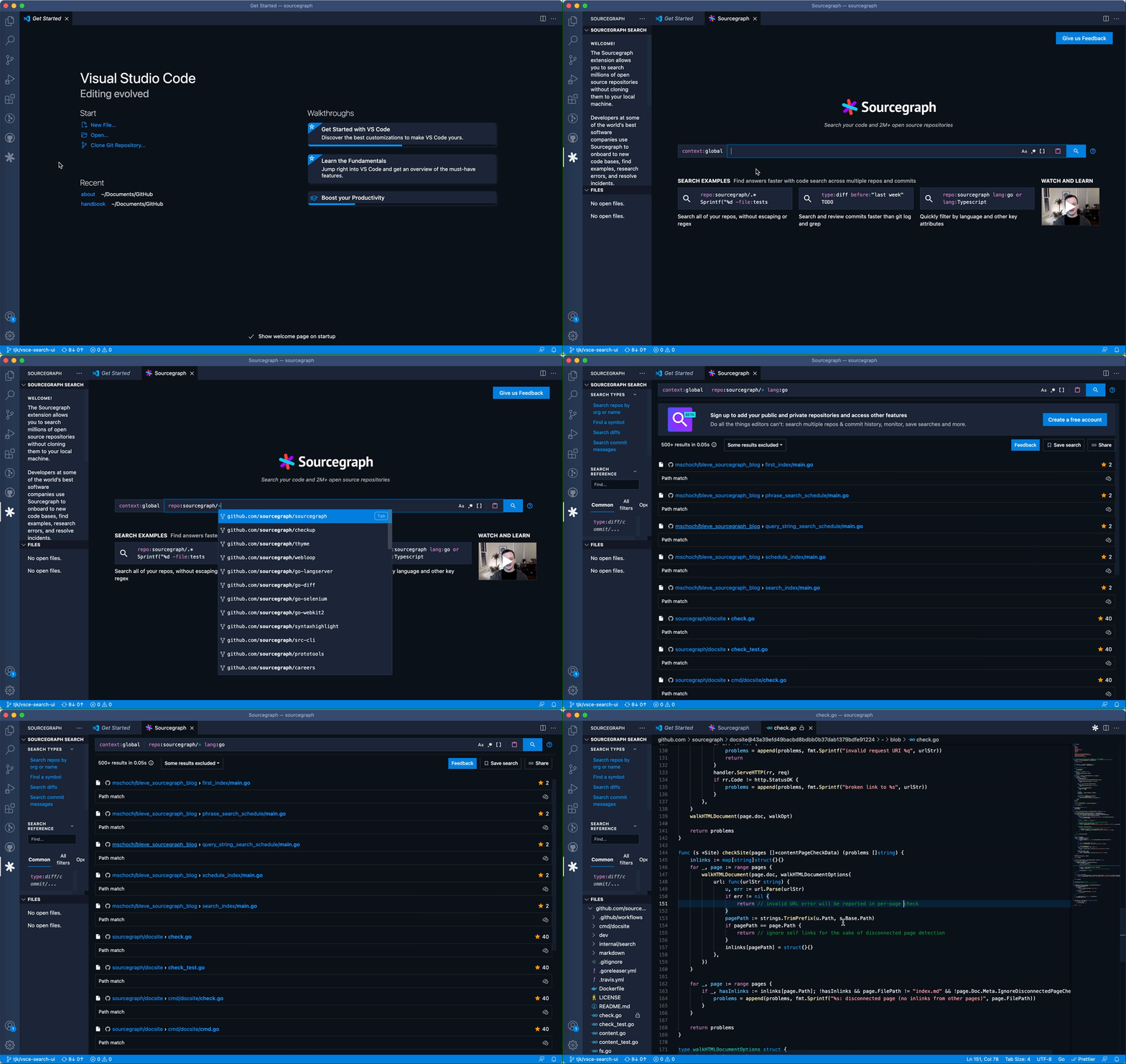
Sourcegraph functions like any search engine; simply type in your search query, and Sourcegraph will populate search results.
Learn more about Sourcegraph search in our docs.
For example, you can search for "auth provider" in a Go repository with a search like this one:
repo:sourcegraph/sourcegraph lang:go auth provider
Adding and searching your own code
Creating an account
In addition to searching open source code, you can create a Sourcegraph account to search your own private and public repositories. You can create an account and sync your repositories with the following steps:
- Click the
Create an accountbutton in the sidebar of the Sourcegraph extension. You will be directed to sourcegraph.com in your browser. - Follow the instructions to create and configure your Sourcegraph instance
Connecting to your Sourcegraph instance
- In Sourcegraph, in your account settings, navigate to
Access tokens, then clickGenerate new token. - Once you have generated a token, navigate to your VS Code Settings, then navigate to "Extension settings".
- Navigate to
Code preferences, then clickSettings. - Search for
Sourcegraph, and enter the newly generated access token as well as your Sourcegraph instance URL. - Add custom headers using the
sourcegraph.requestHeaderssetting (added in v2.0.9) if a specific header is required to make connection to your private instance.
Adding it to your workspace's recommended extensions
- Create a
.vscodefolder (if not already present) in the root of your repository - Inside that folder, create a new file named
extensions.json(if it doesn't already exist) with the following structure.
{
	"recommendations": ["sourcegraph.sourcegraph"]
}
- If the file does exist, append
"sourcegraph.sourcegraph"to the"recommendations"array. - Push the changes to your repository for your other colleagues to share.
Alternatively you can use the Extensions: Configure Recommended Extensions (Workspace Folder) command from within VS
Code.
Keyboard Shortcuts:
| Description | Mac | Linux / Windows |
|---|---|---|
| Open Sourcegraph Search Tab/Search Selection | Cmd+Shift+8 | Ctrl+Shift+8 |
| Open File in Sourcegraph Cloud | Option+A | Alt+A |
| Search Selected Text in Sourcegraph Cloud | Option+S | Alt+S |
Extension Settings
This extension contributes the following settings:
| Setting | Description | Example |
|---|---|---|
| sourcegraph.url | Specify your on-premises Sourcegraph instance here, if applicable. The extension is connected to Sourcegraph Cloud by default. | "https://your-sourcegraph.com" |
| sourcegraph.accessToken | [Depreciated after 2.2.12] The access token to query the Sourcegraph API. Required to use this extension with private instances. Create a new access token at ${SOURCEGRAPH_URL}/users/<sourcegraph-username>/settings/tokens |
null |
| sourcegraph.remoteUrlReplacements | Object, where each key is replaced by value in the remote url. |
{"github": "gitlab", "master": "main"} |
| sourcegraph.defaultBranch | String to set the name of the default branch. Always open files in the default branch. | "master" |
| sourcegraph.requestHeaders | Takes object, where each value pair will be added to the request headers made to your instance. | {"Cache-Control": "no-cache", "Proxy-Authenticate": "Basic"} |
| sourcegraph.basePath | The file path on the machine to the folder that is expected to contain all repositories. We will try to open search results using the basePath. | "/Users/USERNAME/Documents/" |
| sourcegraph.proxyProtocol | The protocol to use when proxying requests to the Sourcegraph instance. | "http", "https" |
| sourcegraph.proxyHost | The host to use when proxying requests to the Sourcegraph instance. It shouldn't include a protocol (like "http://") or a port (like ":7080"). When this is set, port must be set as well. | "localhost" |
| sourcegraph.proxyPort | The port to use when proxying requests to the Sourcegraph instance. When this is set, host must be set as well. | 80, 443, 7080, 9090 |
| sourcegraph.proxyPath | The full path to a file when proxying requests to the Sourcegraph instance via a UNIX socket. | "/home/user/path/unix.socket" |
Questions & Feedback
Feedback and feature requests can be submitted to our VS Code Extension Feedback Discussion Board on GitHub.
Uninstallation
- Open the extensions tab on the left side of VS Code (Cmd+Shift+X or Ctrl+Shift+X).
- Search for
Sourcegraph-> Gear icon ->UninstallandReload.
Changelog
Click here to check the full changelog.
VS Code will auto-update extensions to the highest version available. Even if you have opted into a pre-release version, you will be updated to the released version when a higher version is released.
The Sourcegraph extension uses major.EVEN_NUMBER.patch (eg. 2.0.1) for release versions and major.ODD_NUMBER.patch (eg. 2.1.1) for pre-release versions.```
Development
Please see the CONTRIBUTING document if you are interested in contributing directly to our code base.